

Getting Started
Run your first firmware simulation in Sim86. Open an STM32 example, press a button, see the display respond, and make your own copy.
Run firmware, press a button, and watch the circuit respond—all in your browser. Start with a working example so you can try Sim86 before setting up your own project.
You don’t need a physical board or a local toolchain for this walkthrough. You can try a public example without signing in; you’ll need an account to save your own copy.
1. Open the example
Section titled “1. Open the example”Open the STM32 button-and-display example ↗
The project is called Interrupts. It contains an STM32F405 board, a push button, and an LCD, already wired together with firmware attached.
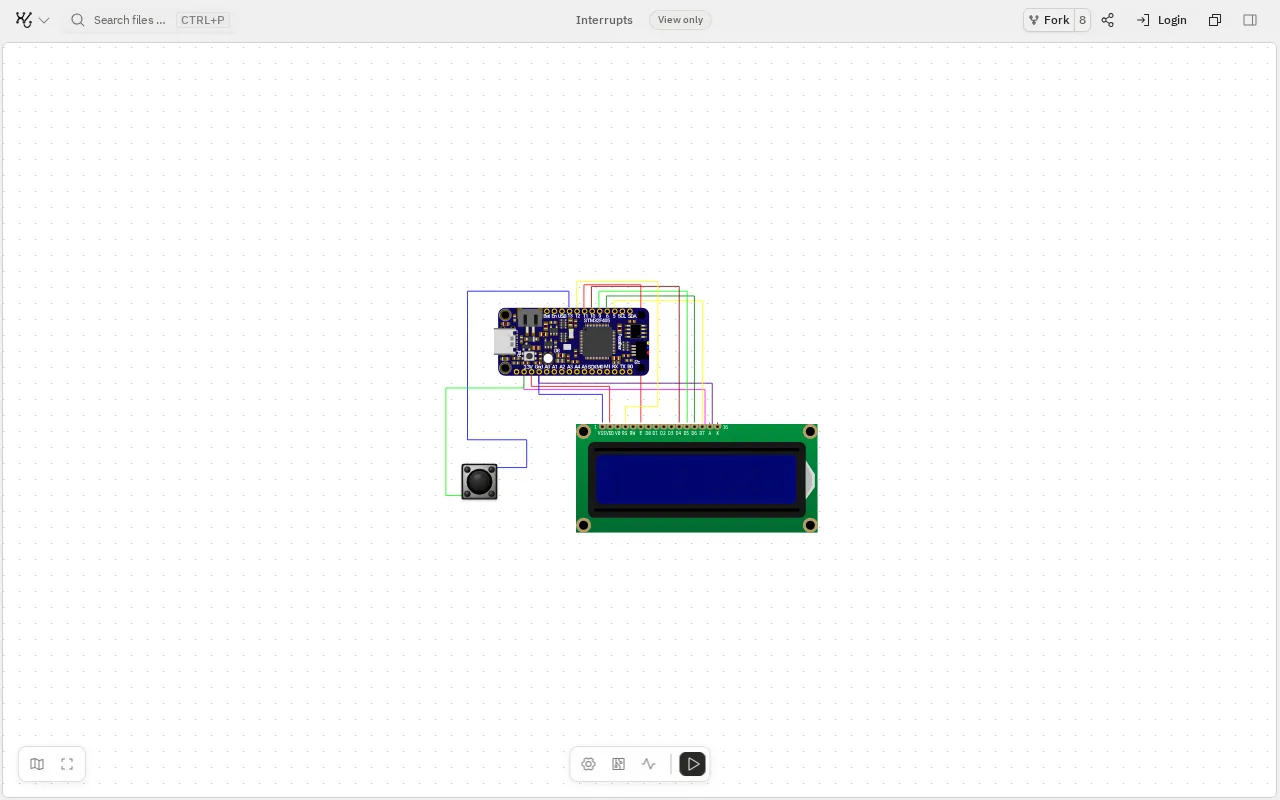
Here’s where to look:
- Middle: your circuit—the board, components, and wires.
- Bottom: the triangular Play button starts the simulation.
- Top right: Fork creates your own copy of the project.
View only means you’re looking at someone else’s project. You can run it and press its button, but you’ll need your own copy to change the firmware or wiring.
2. Run it and press the button
Section titled “2. Run it and press the button”Click Play at the bottom of the canvas. Hovering over it shows Simulate. The LCD lights up and asks you to press the button.
Click the small black push button beside the display. The LCD briefly shows Clicked!, then returns to waiting for another press.
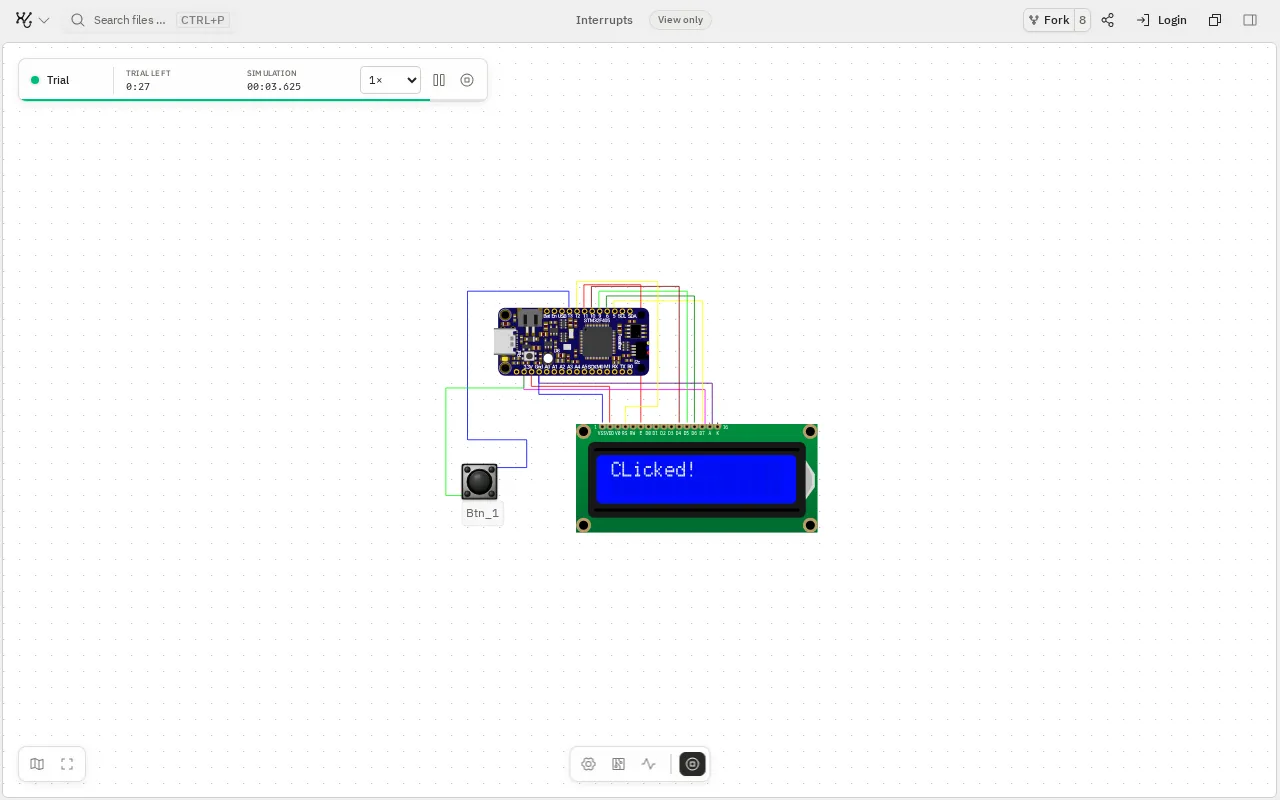
That response comes from the firmware running on the simulated STM32. Your button press reaches the board through its wiring, and the firmware updates the display.
Signed-out runs last 2 minutes. Sign in for longer runs. Use the Stop control when you’re finished.
3. Look at the firmware
Section titled “3. Look at the firmware”Click Search files and commands… in the top bar. This opens a search menu for project files and workspace actions.
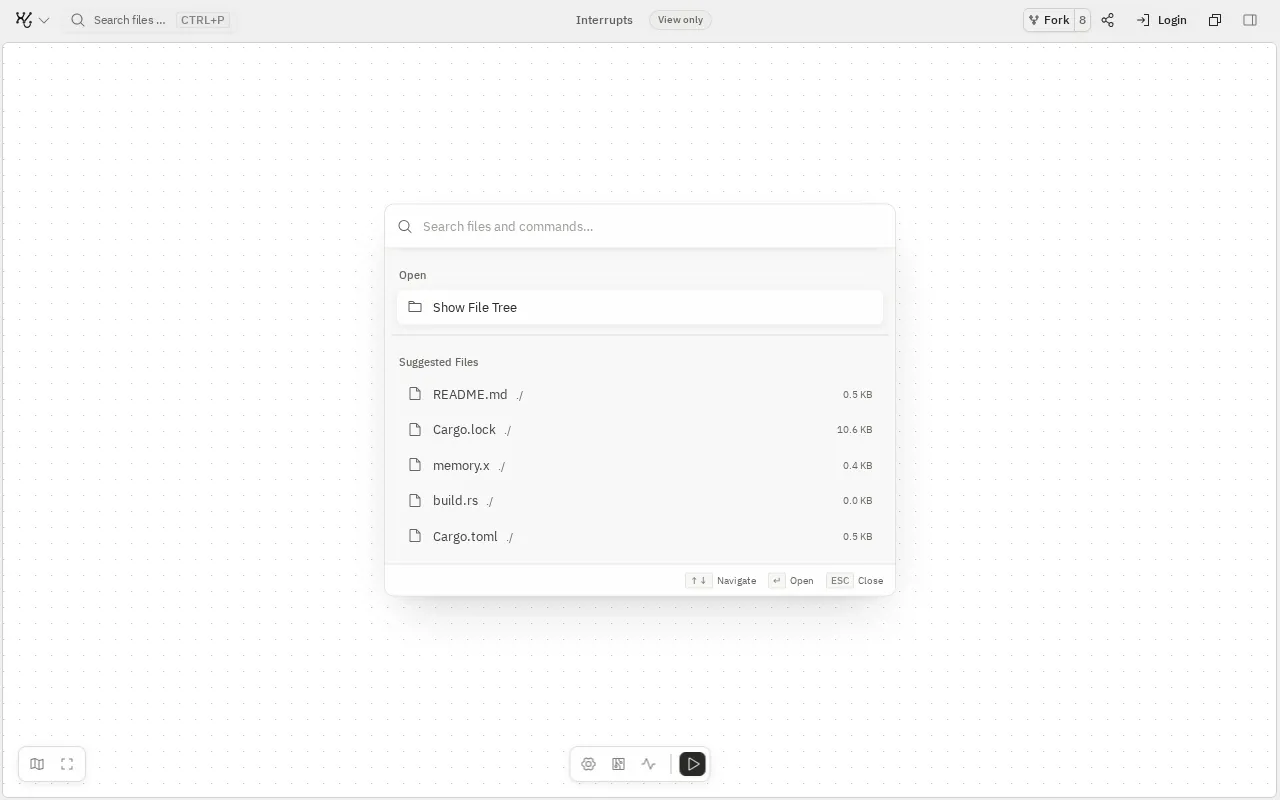
Choose Show File Tree to open the Files panel on the right. You can also use the panel icon at the far right of the top bar. Expand src to find the project’s firmware source; target contains build output.
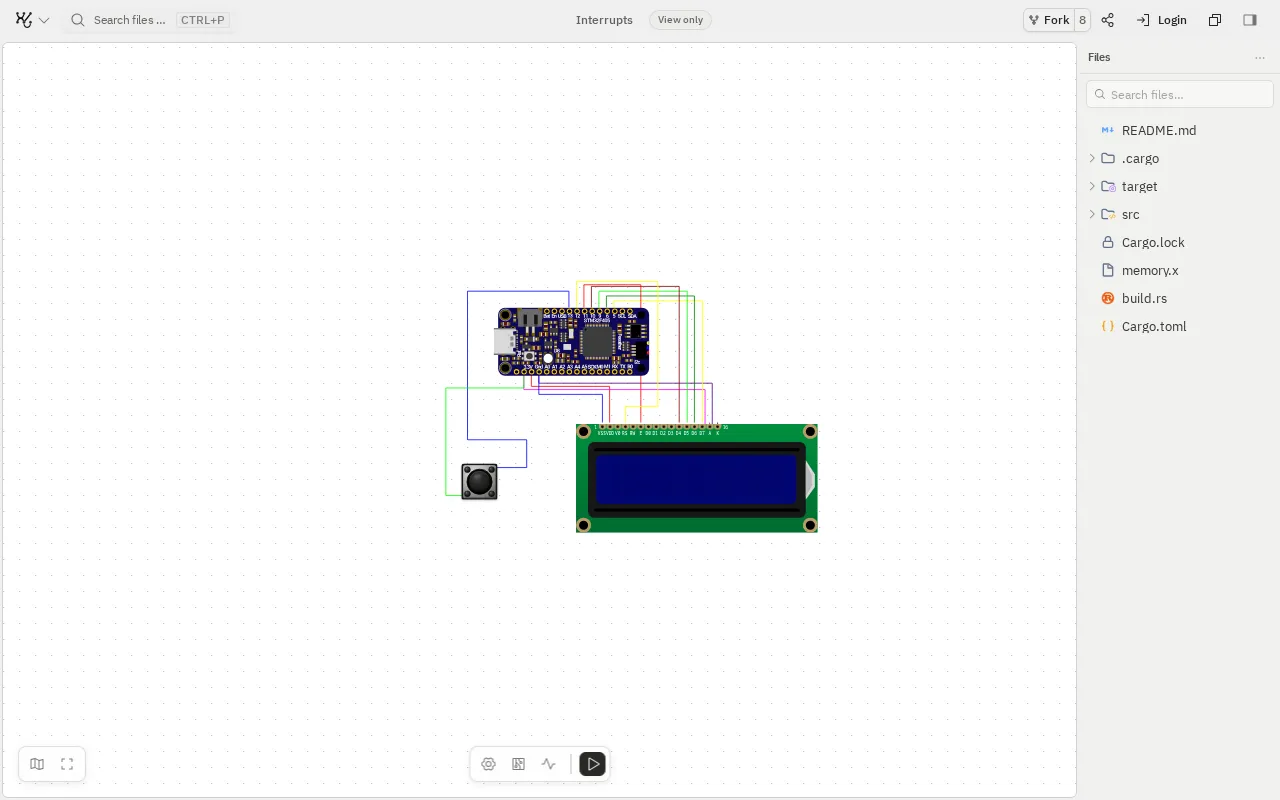
To jump straight to a file, open search again, type its name, and select the result. Press Escape to close search without opening anything.
This example uses Rust. You don’t need to understand or change the code to try it. The useful connection is simple: the source describes the behavior, the compiled firmware runs on the board, and the circuit shows the result.
4. Make it yours
Section titled “4. Make it yours”Click Fork at the top right and sign in if prompted. Complete the fork dialog to create your own editable copy.
Start with a small change, such as the text shown on the LCD. In your copy:
- Stop the simulation before building.
- Edit the firmware source and save your changes.
- Use Build project in the top bar and wait for the build to finish.
- Drag the compiled
.elffile from the build output onto the STM32 board to flash it. - Run the simulation again and press the button to check your change.
Building creates the firmware file. Flashing puts that file on the simulated board. If you still see the old behavior, check that you’ve flashed the new build.
Ask the AI agent for help
Section titled “Ask the AI agent for help”In your own project, open Agent and describe what you want to do. It can help add components, connect their pins, change firmware, build the project, and troubleshoot the simulation.
Try asking:
- “Explain how the button and display are connected.”
- “Check that the wiring matches the pins used in the firmware.”
- “Change the button message to Hello, then build and run it.”
- “The build failed. Explain the error and help me fix it.”
You can also ask it to construct a circuit from existing firmware. Describe the board and components you want to use, then inspect the wiring and run the result. The agent is available in your editable project after signing in, not in the public example’s View only mode.
Your project has a NixOS sandbox
Section titled “Your project has a NixOS sandbox”Each project has its own isolated NixOS virtual machine—a Linux workspace for your files, build tools, and commands. To open its terminal in your editable copy:
- Click Search files and commands… in the top bar.
- Type Terminal and choose Open Terminal.
- Select the Shell tab to run commands in the sandbox.
You can run commands yourself or ask the agent to help set up the tools your firmware needs. If you see Close Terminal in search, the terminal is already open. The terminal action isn’t available in the public example’s View only mode.
That means you can compile firmware and work with your project’s toolchain in the browser without installing it on your own computer. You don’t need to learn NixOS to try the example; the sandbox is there when you need to work on the build.
Read serial output in the terminal
Section titled “Read serial output in the terminal”The Terminal also shows output from your firmware. Run the simulation, then select the tab named after the board to read its serial messages. Board output appears when the firmware emits logs; the tab may not appear until then.
Use Shell for Linux commands, Build Task for compiler output, and the board’s tab for firmware output. If your firmware prints startup messages, sensor readings, or debugging information over a supported serial channel, this is where to look.
The button example above shows its response on the LCD. A quiet serial tab doesn’t mean the simulation has failed—your firmware needs to write serial output for anything to appear there.
Bring your own circuit
Section titled “Bring your own circuit”Once you’re comfortable with the example, add components from the tray at the bottom of the diagram and connect their pins. You can open a component’s documentation to check its pins and firmware requirements.
If you’re unsure which pins to connect, ask the agent to wire the components to match your firmware.
Most boards accept an .elf file. The XIAO ESP32-C3 needs a merged flash .bin.
Check your board’s guide before flashing.
For RF connections, place radios in the same RF Environment instead of drawing wires between them.
If something doesn’t work
Section titled “If something doesn’t work”- Can’t edit? Check that you’re in your own fork, rather than the original View only project.
- The run ended after 2 minutes? That’s the signed-out trial limit. Sign in for longer runs.
- The display is blank? Start the simulation and wait for it to initialize. In your own project, also check the flashed firmware and wiring.
- Your code change isn’t showing? Stop, rebuild, flash the new artifact, and run again.
Where to go next
Section titled “Where to go next”- Try another example for ESP32-C3, RP2040, or a different circuit.
- Read the hardware benchmarks to see measured similarities and differences.
- Build your own web dashboard with the SDK.
- Set up automated firmware testing. For pytest, we recommend the CLI, currently available through closed access—contact us.